|
||
| Products Download Events Support Videos | ||

Technical Support
On-Line Manuals
µVision User's Guide
 About µVision
User Interface
Creating Applications
About µVision
User Interface
Creating Applications
 Debugging
 Start Debugging
Start Energy Measurement without Debug
Application Program Execution
Debug Windows and Dialogs
Breakpoints Window
Call Stack and Locals Window
Code Coverage
Command Window
Component Viewer
Disassembly Window
Editor Window
Event Recorder
Setup Event Recorder
Event Recorder Window
Events Filtering
Event Statistics Window
Post-mortem Analysis
Event Viewer
Execution Profiler
Instruction Trace Window
System Analyzer
Usage tips
Save System Analyzer Contents
Statistics
Restrictions
Logic Analyzer
Setup
Setup in Detail
Restrictions
Cortex-M Trace Configuration
Memory Map
Memory Window
Performance Analyzer
Registers Window
Serial Window
Debug (printf) Viewer
Symbols Window
System Viewer
Adding System Viewer Windows
System and Thread Viewer
Thread States
Toolbox
Trace Data Window
Trace Navigation
Trace Exceptions
Event Counters
ULINKplus Window
Watch Window
Core Peripherals
Cortex-M0 and Cortex-M0+
CM0/M0+: Nested Vector Interrupt Controller
CM0/M0+: System Control and Configuration
CM0/M0+: System Tick Timer
Fault Reports (Cortex-M0+ only)
Cortex-M3, Cortex-M4, and Cortex-M7
CM3/M4/M7: Nested Vector Interrupt Controller
CM3/M4/M7: System Control and Configuration
CM3/M4/M7: System Tick Timer
CM3/M4/M7: Fault Reports
CM3/M4/M7: Memory Protection Unit
Cortex-M23/M33/M35P and Cortex-M55
Armv8-M: Nested Vector Interrupt Controller
Armv8-M: System Control and Configuration
Armv8-M: System Tick Timer
Armv8-M: Fault Reports
Armv8-M: Memory Protection Unit
Armv8-M: Security Attribution Unit
M-Profile Vector Extension (MVE)
Debug Scripting
Expressions
Constants
System Variables
Peripheral Variables
I/O Ports
Serial Ports
Program Variables (Symbols)
Fully Qualified Symbols
Non-Qualified Symbols
Literal Symbols
Using Symbols
Line Numbers
Bit Addresses
Type Specifications
Memory Attribution Specifiers
Operators
Differences between µVision and C
Expression Examples
Code and Data Trace (Cortex-M)
Trace Features
Configuring Trace
Tracepoint Expressions
Tracepoint Intrinsics
Tracepoint Limitations
Tracepoint Marks
Tips and Tricks
Review Peripherals and CPU Configuration
Simulate I/O Ports
Simulate Interrupts and Clock Inputs
Simulate external I/O Devices
Assign Serial I/O to a PC COM Port
Check Illegal Memory Access
Command Input from File
Preset I/O Ports or Memory Contents
Write Debug Output to a File
Keyboard Shortcuts
TPIU Initialization after RESET (Cortex-M)
Prevent Opening Files
Show Japanese Messages
Debug Commands
Debug Functions
Simulation
Flash Programming
Dialogs
Utilities
Command Line
Example Programs
Appendix
Start Debugging
Start Energy Measurement without Debug
Application Program Execution
Debug Windows and Dialogs
Breakpoints Window
Call Stack and Locals Window
Code Coverage
Command Window
Component Viewer
Disassembly Window
Editor Window
Event Recorder
Setup Event Recorder
Event Recorder Window
Events Filtering
Event Statistics Window
Post-mortem Analysis
Event Viewer
Execution Profiler
Instruction Trace Window
System Analyzer
Usage tips
Save System Analyzer Contents
Statistics
Restrictions
Logic Analyzer
Setup
Setup in Detail
Restrictions
Cortex-M Trace Configuration
Memory Map
Memory Window
Performance Analyzer
Registers Window
Serial Window
Debug (printf) Viewer
Symbols Window
System Viewer
Adding System Viewer Windows
System and Thread Viewer
Thread States
Toolbox
Trace Data Window
Trace Navigation
Trace Exceptions
Event Counters
ULINKplus Window
Watch Window
Core Peripherals
Cortex-M0 and Cortex-M0+
CM0/M0+: Nested Vector Interrupt Controller
CM0/M0+: System Control and Configuration
CM0/M0+: System Tick Timer
Fault Reports (Cortex-M0+ only)
Cortex-M3, Cortex-M4, and Cortex-M7
CM3/M4/M7: Nested Vector Interrupt Controller
CM3/M4/M7: System Control and Configuration
CM3/M4/M7: System Tick Timer
CM3/M4/M7: Fault Reports
CM3/M4/M7: Memory Protection Unit
Cortex-M23/M33/M35P and Cortex-M55
Armv8-M: Nested Vector Interrupt Controller
Armv8-M: System Control and Configuration
Armv8-M: System Tick Timer
Armv8-M: Fault Reports
Armv8-M: Memory Protection Unit
Armv8-M: Security Attribution Unit
M-Profile Vector Extension (MVE)
Debug Scripting
Expressions
Constants
System Variables
Peripheral Variables
I/O Ports
Serial Ports
Program Variables (Symbols)
Fully Qualified Symbols
Non-Qualified Symbols
Literal Symbols
Using Symbols
Line Numbers
Bit Addresses
Type Specifications
Memory Attribution Specifiers
Operators
Differences between µVision and C
Expression Examples
Code and Data Trace (Cortex-M)
Trace Features
Configuring Trace
Tracepoint Expressions
Tracepoint Intrinsics
Tracepoint Limitations
Tracepoint Marks
Tips and Tricks
Review Peripherals and CPU Configuration
Simulate I/O Ports
Simulate Interrupts and Clock Inputs
Simulate external I/O Devices
Assign Serial I/O to a PC COM Port
Check Illegal Memory Access
Command Input from File
Preset I/O Ports or Memory Contents
Write Debug Output to a File
Keyboard Shortcuts
TPIU Initialization after RESET (Cortex-M)
Prevent Opening Files
Show Japanese Messages
Debug Commands
Debug Functions
Simulation
Flash Programming
Dialogs
Utilities
Command Line
Example Programs
Appendix
Command Window
The Command window shows generic debug information and allows you to enter debug commands and debug functions to interact with the program.
The syntax generator displays matching commands, options, and parameters. The list of likely commands is reduced to coincide with the typed characters. Use only the CAPITAL letters displayed in the help of the window. The letters can be typed in lower or upper case into the command-line.
| By typing B, the syntax generator reduces
the list of possible commands. Further use: bd, be, bk, or bl. |
 |
| Command options are shown when the typed command
is identified clearly. Further use: read, write, or readwrite |
 |
| The syntax generator leads through the command entry and helps avoiding errors. |  |
Use expressions to view and modify the value of variables, symbols, registers, or memory locations. For example, type the following commands:
| Command | Effect |
|---|---|
| R7 = 12 | Assign the value 12 to register R7. |
| CPSR | Display the CPSR register. |
| time.hour | Displays the member hour of the time structure. |
| time.hour++ | Increments the member hour of the time structure. |
| index = 0 | Assigns the value 0 to index. |
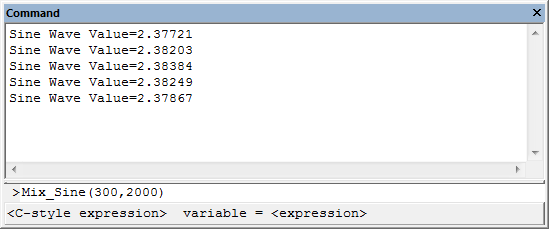
Invoke debug functions by entering the function name along with the function arguments. For example:
Mix_Sine (300,2000) // your debug function
Note
- To exit long running or hanging functions, position the cursor into the command-line of the window and press ESC.
ProductsDevelopment Tools |
Hardware & Collateral |
Downloads |
Support |
Contact |
 |
||||