|
||
| Products Download Events Support Videos | ||

Technical Support
On-Line Manuals
MCBSTM32 User's Guide
 Introduction
Setup
Theory of Operation
Writing Programs
Example Programs
Introduction
Setup
Theory of Operation
Writing Programs
Example Programs
Adding a Library
Once you decide which library to use, add that library file to your project by right-clicking the folder in the Project Workspace window.
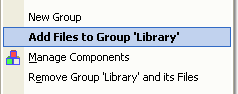 Click on the Add Files to
Group item. This displays the Add Files to Group dialog.
Click on the Add Files to
Group item. This displays the Add Files to Group dialog.
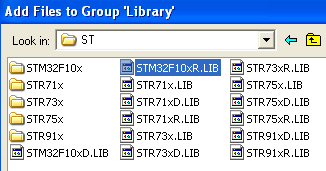 Select the library (or libraries) you
want to add from..\ARM\RV31\LIB\ST\.
Select the library (or libraries) you
want to add from..\ARM\RV31\LIB\ST\.
 Then, click the Add button to
add each library file.
Then, click the Add button to
add each library file.
When you are finished adding files, click on the Close button.
or
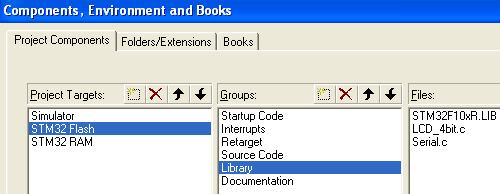
 You may also add or remove files
from a project using the µVision dialog Project — Components,
Environment and Books — Project Components. Select your Project
Target first, then select the Group. The files contained within that
Group display in the Files list box.
You may also add or remove files
from a project using the µVision dialog Project — Components,
Environment and Books — Project Components. Select your Project
Target first, then select the Group. The files contained within that
Group display in the Files list box.
ProductsDevelopment Tools |
Hardware & Collateral |
Downloads |
Support |
Contact |
 |
||||